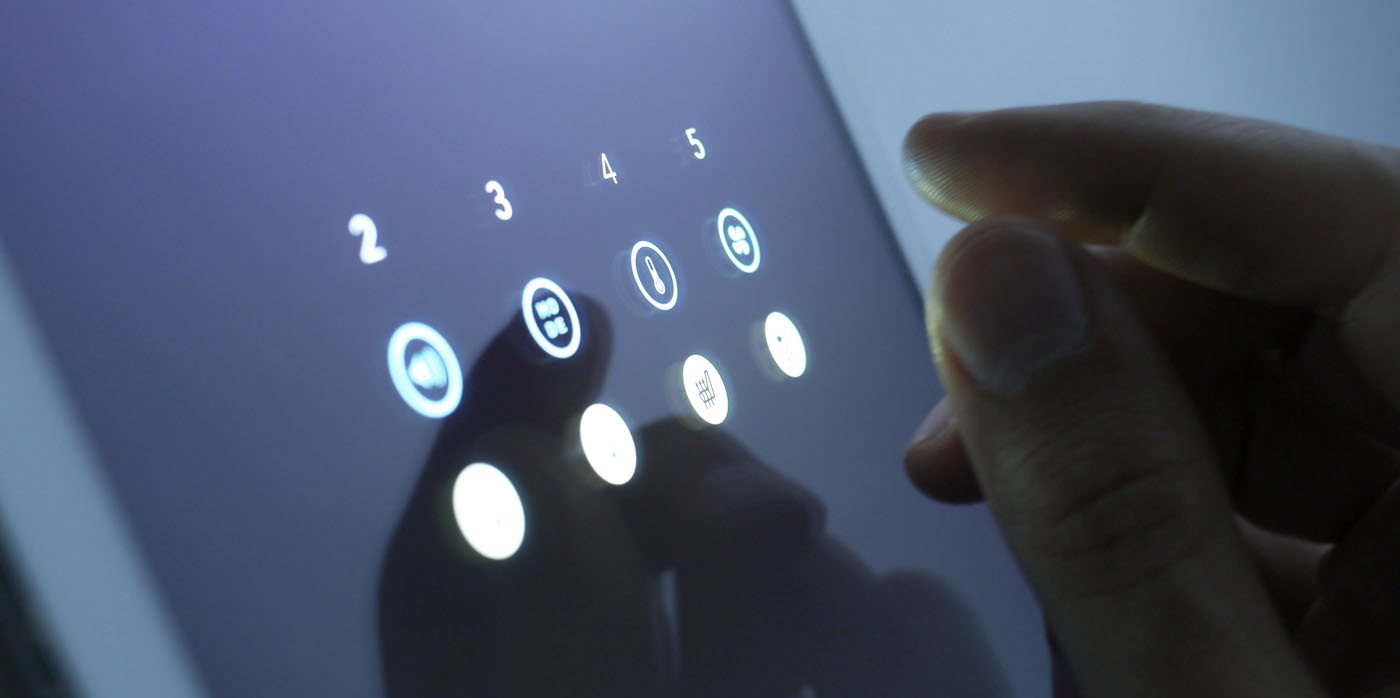
However, it's not the solution yet, in my opinion.
First, all the methods of interaction are invisible. There are no cues to tell the user what two fingers vs. four fingers will do, or what the difference is between a close-fingered gesture and a wide gesture. At best, you'd have to standardize the meanings across all cars (something that rarely happens in autos, even today there's no standard for where the wiper controls go, for instance), and even then, people would have to memorize those invisible gestures before they could use their car.
Secondly, accidental inputs would happen with some frequency. People have a wide range of hand sizes, motor control skills, even number of fingers. Suppose I've got two of my fingers in a cast? I can use an existing car's dashboard just fine with that temporary impairment, but not this.
Finally, it's addressing a problem that already has a solution—physical, dedicated input devices. Humans have spatial memory, we learn where things are, and learn to reach for them without looking or even thinking. Your muscle memory tells you how to reach the wiper stalk or the gear shift, which is why it's sometimes disconcerting to get into a car with the gears on the steering column if you normally shift in the center console. We need in-car systems that let the physical feedback, affordances, and reliable location of buttons, knobs, and switches interact with display systems that are designed for the attention a driver requires. You should be able to keep your eyes on the road and still adjust the air conditioning—something the designer in this video recognizes—but that shouldn't require learning invisible gestures that are prone to user error.
Beyond spatial memory what's good about this is that you don't have to look anywhere while still adjusting (some speech feedback about what mode you've selected would be good). The lack of sight is the most compelling aspect -- but I can guarantee you my parents would likely never remember the mappings and always have to look at the legend. Even then they'll probably be confused.
Look at a traditional dashboard. The air conditioning knob is a different shape and size from the stereo's volume knob, and located in a different place (ideally). Those things make it easy for the the driver to distinguish one from the other, and find them while keeping their eyes on the road.
There are other cues that usually exist to help as well, such as a blue-to-red graphic around the temperature control, the volume control being next to other audio features like the radio display, etc.
In an environment where the user has to keep a 3,500 lb steel machine safely controlled while traveling 100 feet per second, the rules of usability become incredibly important.
And keep in mind: I was thinking of this as being an additional mode to whatever the more "standard" interface would be. You could always have your standard AC controls (on a tactile-feedback-less screen though) but this quick input mode could be invoked when you know what you're doing.
I do think that the gestures could be broken out into additional interactions, e.g., gestures towards the top do a different thing than the same gestures at the bottom or even have four quadrants that initiate different interactions.
I would think that it would require a type of introduction and practice mode that progressively teaches how to interact and also allows a demo mode like display that can be engaged for those who are not versed in that type of interaction. If not being intuitive was really an impediment there would be no keyboard shortcuts. If you can't take a second to memorize some keyboard shortcuts that will quadruple your effectiveness and efficiency then you cannot be helped.
One suggestion is to look at the Cognitive, Visual, and Manual Load framework common in automotive UI design. http://www.esurance.com/safety/3-types-of-distracted-driving
This UI concept has a low visual, but very high manual and cognitive load.
The UI can provide user feedback with static electricity, and the current could increase with the speed of the car.
As for the final point, a ten key resting within hands reach would work fine. You could memorize the number sequence for different commands, and get audio feedback. Talk about a proven UI, basically the telephone. Baby boomers ought to be comfortable with it.
There are both good and bad reasons for this. But the important point is that automotive interfaces are designed to be built into cars at the factory, and used for many years without requiring any updates. Even if updates are possible, most people don't get them. So it's a completely different mindset and approach and time scale than people from the Silicon Valley dot-com startup industry have.
Another factor is that the devices built into cars have a very long design and production lead time, and by the time the car comes out, the built in hardware and software is already quite obsolete compared to the smartphone the driver probably owns.
Factoring the problem out of the car to run in a smartphone or tablet itself also has its own frustrating problems, because when you're designing an automotive computer system, you can't predict what kind of technology and standards will be available or popular by the time it ships.
It's a very difficult problem space, and the stakes are extremely high, not just financially, but also because cars are weapons of mass destruction that kill more people and destroy more property than all terrorists combined could possibly dream of.
Voice control (even if it works reliably, which it does not today) takes several seconds and requires thought in composition and execution.
Touch on a flat screen may be quick, but requires looking. But it's probably not quick, because you'll probably have to change modes, which will require thinking and several seconds of manipulation.
Just put some damn hard buttons on the dash. I know why manufacturers love the screens: they require no tooling, provide lots of real estate for all the doohickeys you want to cram in, and they're hip (Ooh! Like and iPad(TM)!). But they don't belong in cars. Even good ones like Tesla's are bad.
Years ago I said I wouldn't buy a car with screen controls. Now it looks like I just won't be able to buy a new car.
I repeat: Just put some damn hard buttons on the dash.
It's best if the menus can provide real time in-world feedback, like applying the effect of the interaction immediately as the menu is tracking. That makes it feel more like immersive "direct manipulation" than indirect "menu selection". It's important that pie menus support "reselection", which makes them much more forgiving and differentiates them from traditional blind gesture recognition, so you at any time during tracking you can change the selection to any item you desire.
Pie menus completely saturate the entire possible gesture space with usable and accessible commands: there is no such thing as a syntax error, and you can always correct any gesture to select what you want, no matter how bad it started out, or cancel the menu, by moving around to the desired item or back to the center to cancel.
Handwriting and gesture recognition does not have this property, and it can be quite frustrating because you can't correct or cancel mistakes, and dangerous because mistakes can be misinterpreted as the wrong command. Most gestures are syntax errors. Blind gesture recognition doesn't have a good way to prompt and train you with the possible gestures, which only cover a tiny fraction of the possible gesture space. All the rest of the space of possible gestures is wasted, and interpreted as a syntax error (or worse, misinterpreted as the wrong gesture), instead of enabling the user to correct mistakes and reselect different gestures.
Even "fuzzy matching" of gestures trades off gestural precision with making it even harder to cancel or correct a gesture, without accidentally being misinterpreted as the wrong gesture. That's not the kind of an interface you would want to use in a mission critical application such as a car or airplane.
Another way to reframe the gestural, self revealing and reselectable qualities of pie menus is as navigation through a map, as opposed to climbing up a hierarchical menu tree. Instead of laboriously climbing up a tree of submenus, you simply navigate around a map of "sibmenus" -- sibling menus that you can easily move back and forth between by moving in opposite directions.
This demo of an iPhone app I developed called "iLoci" demonstrates the idea, enabling users to create their own memorable maps of "locations" instead of "menus", which they can edit by dragging around, that are related to each other by two-way reversible links. It exploits the "Method of Loci," an ancient memorization technique from the time before iPhones when people had to use their own brains to remember things, in order to leverage your spatial navigation memory and make it easy to learn your way around. http://vimeo.com/2419009
https://en.wikipedia.org/wiki/Method_of_loci "The Method of loci (plural of Latin locus for place or location), also called the memory palace, is a mnemonic device introduced in ancient Roman and Greek rhetorical treatises (in the anonymous Rhetorica ad Herennium, Cicero's De Oratore, and Quintilian's Institutio Oratoria). In basic terms, it is a method of memory enhancement which uses visualization to organize and recall information. Many memory contest champions claim to use this technique to recall faces, digits, and lists of words. These champions’ successes have little to do with brain structure or intelligence, but more to do with their technique of using regions of their brain that have to do with spatial learning."
I like the idea of moving away from hierarchal menu navigation, towards spatial map navigation. It elegantly addresses the problem of personalized user created menus, by making linking and unlinking locations as easy as dragging and dropping objects around and bumping them together to connect and disconnect them. (Compare that to the complexity of a tree or outline editor, which doesn't make the directions explicit.) And it eliminates the need to a special command to move back up in the menu hierarchy, by guaranteeing that every navigation is obviously reversible by moving in the opposite direction. I believe maps are a lot more natural and easier for people to remember than hierarchies, and the interface naturally exploits "mouse ahead" (or "swipe ahead") and is obviously self revealing.
Here is another video demonstrating a prototype exploring this interface that I developed in Unity3D for Will Wright. It shows both an "iLoci" map editing interface, as well as traditional pop-up pie menus using "pull-out" distance parameters with real time in-world feedback to preview the effect of the selection (plus it also has cellular automata, at Will's request!): http://www.DonHopkins.com/home/StupidFunClub/MediaGraphDemo1...
The iPhone-style interaction -- a flat screen of glass where you manipulate "controls" with touch sensors -- has one major advantage: it allows an INFINITE number of different controls. (Every app is its own set of controls.) But to do this it relies heavily on continual interactive feedback with your vision.
When driving, you can't do that continual feedback. Perhaps someone clever can figure out how to do interactive feedback with audio (you can use that sense somewhat without taking your attention from the road). But otherwise, you can really only manage as many motions as your fingers can "memorize" (muscle memory mostly). If you're doing that, why not stick with switches and knobs, where your tactile sense can help out.
My Model S has these same controls embedded in the steering wheel. Volume, music control, and climate controls are all there.
That's actually where I find I spend most of my time interacting with the car. I usually only use the touchscreen for more complex things like manipulating the map. For complex inputs like choosing a song or entering my destination, I use the voice controls.
I don't think the solution is one interface. It's multiple interfaces that function best in certain contexts, with some overlap. Look at Google Glass for an example of this.
What I find hard about in-car UIs are things like entering and editing navigation directions or selecting music to listen to given a 32GB USB stick full of songs.
There's always some horribly designed onscreen keyboard or "iDrive" type knob controller, both of which are quite horrible experiences. To make matters worse, the UI is laggy and unresponsive, and in an effort to make things "easier" onscreen controls frequently dim & disable when not actionable or when the car is moving vs. stationary.
http://worrydream.com/ABriefRantOnTheFutureOfInteractionDesi...
It's the dynamic, changing display of touchscreens, where you can navigate through a menu (or other structure/organisation) of settings, are where the real benefits lie. If, like in the video, you don't make use of the screen, you're left with a tablet-sized void on your dashboard. Most people agree that the existing buttons and dials are far better, easier and intuitive to use, so your volume & fan speeds are going to be best served by physical controls.
The problem is with the less-used controls. Cars have lots of settings and if you add a button or dial for each of them, you'll end up with something looking like an audio mixing desk. This is where touchscreens and displays can improve the UI. A well thought-out system should let the driver find any setting they need and let them adjust it. Leave the common controls as-is, and work on how best to present the others on the screen.
If you look closely in the beginning of the video, you'll see that I'm proposing for this to be a special mode that would only be invoked from time to time. So as you are suggesting: It's all about showing the right controls at the right time.
Edit: Another thought... the UI for many funtions needs to provide visual feed back... say for what system I am selecting or what station I am tuning. The text is quite small which would cause even more of a distraction to try to read. Yes I can begin the selection process without a visual cue, but I still need to look to see what I'm selecting. Not sure I see a large improvement in driver distraction there.
Slick for users like us? Definitely. Intuitive for the average Joe out there? I don't think it would fly. Too much to remember and too much dexterity required. My Mom could never use this. At best I see this as an alternate UI the driver could select over something more conventional when they feel comfortable with it.
Kudos for thinking outside the box though, there are definite UI gems here that could be leveraged.
Intuition isn't important. The designer mentioned that this is a trade off, and is intended for regular users who have muscle memory of their controls. You can always add a tutorial or "help" mode by pressing a button in the bottom right or whatever, anyways.
[0]- http://www.bmw.com/com/en/newvehicles/x/x5/2013/showroom/dri...
The fact it's not implemented in a car is why it seems like good design - because sitting focusing on your iPad with no other way more important task to deal with means you can 'figure it out'.
How do I tell a casual driver of my car how to adjust the A/C? Or the radio and GPS? How do I tell - at a glance - which control I need to hit? I can't even hit a control - I have to somehow apply steady constant pressure to the screen to execute a gesture - so that's completely incompatible with anyone who likes their seat a little further back.
The use of any amount of press and hold gestures is completely unacceptable, yet that's the first thing we see on the screen.
Same reason why my phone has a physical keyboard.
I generally agree. I just bought a car and one of the reasons that I skipped the nav system is that I didn't want a touch screen for things that work better as knobs.
That being said there is a balance to strike in today's smart-device world. Having a touch screen can save space and reduce control clutter when trying to cram bluetooth, gps, hd radio, playlist, and other controls onto the dash. They allow the car to only show me what I need when I need it.
Looking at most touch screen dashes, such as those in the article, show that they fail at this, of course.
To quote Antoine de Saint Exupéry, "It seems that perfection is reached not when there is nothing left to add, but when there is nothing left to take away"
Modern "convenience" is more like modern pain in the ass.
My car is a 1991 and has manual locks, manual windows, manual everything.
Beyond the radio the only buttons in the entire vehicle are the headlights. There is a button for the lights, and one for the brights. Pressing the one for the brights is rigged in a way that physically enables the bright button if it is not already depressed. High tech.
The heat controls consist of two vacuum powered left to right sliders.
I find myself want for nothing. Nothing. So simple. Nothing to break, nothing to worry about. It gets me from home to work, and back, reliably. It does what a car should.
Interfaces need to have strong couplings between action and zero overloading. Two finger ubiquitously means "scroll now" on trackpad. But even on an iphone, multitouch is seldom used for this reason. A trackpad has no images to display, so it is forced to overload gestures with multitouch. Phone don't have this limitation, and thus, intelligently avoid the use of multitouch.
As another anecdote, mobile games that rely on multitouch tend to not do so well.
Could there be a few options to enter other modes, though? What I mean is that right now there are only 8 adjustments possible. That's better than the 4 I thought it was limited to, but still nowhere near enough for modern cars.
I would estimate that on a modern car you need to be able to adjust something like 100 parameters. Only a few of them frequently, but definitely more than 8 in total.
One of the thoughts I had was that using a (say 90 degree?) twist motion along with a number of fingers could bring up sub-menus. That way if you want to adjust other radio parameters like fade, balance, equalizer, etc you would put two fingers on (for volume) and twist.
Maybe you'd arrange the different controls in a loop so that every twist indexes to the next and there's a ~10 second timeout before you head back to the default. So if you want to adjust all the "volume" parameters you put two fingers and twist right once for balance and adjust, twist right again to get fade, twist right again to get highs, etc. Make a mistake? Twist left to go back and re-adjust.
If you want to get out of one of the sub-menus you're in prior to the ~10 second time-out for default, another gesture? Maybe a double tap? I don't know on that one, really.
Not the author, but the way I see it this is specifically an interface for adjusting things eyes-free when driving. In an actual implementation, there would be some sort of physical switch between the in-drive control (demoed here) and a high-density "at rest" operation for passengers or more specific tasks (e.g. configuring the GPS).
> One of the thoughts I had was that using a (say 90 degree?) twist motion along with a number of fingers could bring up sub-menus.
The problem with this is there'd likely be a rotational component to movement, and a movement component to rotations, discriminating becomes harder and the chances of false positive (and thus frustration) increase. Only using a single axis is actually a smart move as far as I'm concerned.
I agree that you might end up rotating your fingers SOME while moving them up or down. But I'm not sure that I agree that you would move them 90 degrees completely unaware. In order to move your thumb and index finger from vertical aligned to horizontally aligned you're going to require some (maybe a lot) of wrist motion. It's hard to make that wrist motion happen accidentally.
You might end up setting it to accept a range between 70 and 120 degrees to qualify for a "go to the next setting" motion and you can provide some kind of feedback (vibratory or audible or both) that you have indeed twisted far enough to trigger the change.
Yes!
You exhibit the symptoms of somebody just introduced to multitouch and gesture recognition and trying to "explore the possibilities." The reality of gesture control is that they make for horrible user experiences. You are encouraged to try it on your own if you aren't convinced. Adobe, Apple, and a number of other companies did a lot of user study into this.
Double tap, twists, etc. All those gestures suck and fail for different reasons sadly.
I got interested in multi-touch something like 6 years ago when I saw this: http://vimeo.com/6712657 So I don't think that I'm someone "just introduced to multitouch" at all. But thanks for trying to subtly call me a naive idiot!
So far the best people are able to do is two finger scrolling and pinch zoom. It's kinda sad.
That said that is neat implementation and it very elegant but I would like to have that in the living room rather than the car.
A possible evolution I guess would be to have different screen you would flick through that would group 2 or 3 command together with a big visual cue on the background.
I drive a 1998 car and can operate every single control without looking at the console, except audio tone controls and choosing a specific FM station not in my presets. Granted, navigation is missing since it's an older car -- better voice controls on the phone could make up the gap.
I'm not sure that the New Car UI is better than what car manufacturers have already done. None of the functions of this interface can be easily discovered. You would need to watch a training video to learn how to use one of these. It would be too easy to forget which gestures correlate to each function.
(By the way, itt's funny how nowadays, hardware UI is immediately associated with "touch controls".)
Feeling how many fingers are touching the screen is also easy with the normal sense of touch. Add in a little hysteresis to handle bumps (you could even integrate info from the accelerometer) and I bet that even bumpy conditions will be significantly improved with this system.
Great ideas though. It's great to see someone working on this! Nice job.
I don't know how to invoke it on the demo/prototype though.
I find it interesting that the Boeing 787 uses five 15 inch displays, but for information display only. Input is still done with buttons and knobs.
[1] http://www.boeing.com/commercial/aeromagazine/articles/2012_...
For now the best car interface I've used was voice recognition. It usually works great, because it's not a general purpose text dictation. It only needs to recognise less than 100 words and it's not that hard to do. For example I'm not a native English speaker, and I can't get google voice input to capture most of the sentences correctly - it's simply not usable for me at the moment. But I'm quite happy to use voice commands in a Prius - I don't think I've ever used more than 4 or 5 of them, always perfectly recognised.
Also, this uses a whole iPad screen to control 8 settings-- eight knobs would take less space and maintain the benefits of a physical interface.
Personally I think commonly-used controls like volume, temperature, fan speed, and some music controls should have physical dials. You can then find them by feel, they're reliable and modeless, and they're much easier to understand. Then, leave the touch screen for navigation and more advanced features.
Okay, so what's better than a center-console touch-screen for user feedback? A transparent display either in the windshield or just behind it. Yes, a fighter-jet style HUD. The user could be twiddling buttons on the dash or smearing his/her greasy-finger across the inner surface of his windshield (only for infrequently used functions). The important thing is that user feedback comes from the same place that a driver's eyes ought to be directed when driving!
P.S. As a resident of a frigid country, let me just add that the less I can control with a pair of mitts on the less likely I am to buy your car.
You'd be hard pressed to find anything less ergonomic than fiddling with the windshield behind the steering wheel.
Oh wait, that's how it actually worked before we've broken it…
If I'm already familiar with either my current car's touch screen UI or your design, I can do anything pretty quickly. So the real question is what happens when I don't know or remember exactly how to operate it. Say I'm driving on the highway at 60-70 mph, and I want to change my radio input. How many fingers was that? I can either try all the combinations, which would be incredibly distracting. Or I can figure out how to bring up that legend (better remember how though since there's no indication) and stare at the tiny buttons. Now, since only one option is displayed at a time, I need to figure out the spacial relationship between FM and AM. Is AM a swipe up or down from FM? Is there something in between? I need to constantly be checking the dashboard as new selections are made. This sounds incredibly distracting.
And I'm expected to do all of this while driving at 60 mph. Granted, much of the current touch screen UIs in cars suffer the same problems. But you haven't solved those problems in any meaningful way.
> All in all, this interface gives you easy control over 8 different settings. And it does that without you having to take your eyes off the road because you're being distracted trying to hit that one small button on the screen.
I have a hard time believing the vast majority of people would be able to operate this interface without taking their eyes off the road for a significant amount of time.
>...good ideas here that could be used in other domains.
I'd love to see more touch UIs that serve as secondary input mechanism for something else. If I had a big color picker for Photoshop in my iPad I would already be ecstatic!
I think we have too much shit distracting us in the car as it is. I am more than happy with physical dials and sliders for A/C, dials and buttons for the audio, and hopefully someone will come up with a descent Siri-like voice command input for messages/voice and GPS.
Asking me to interact with a blank screen and having to look at it to make sure it's doing what I want is asking for trouble. Just the other day a cop was walking the line-up at the traffic lights and booking anyone who was fiddling with their phone.
Touch screens that you have to actively look at to interact with will still be distracting and therefore I cannot see how they will become a primary interface of future driving. Voice command with feedback will take over here when it is mature enough.
http://www.icbc.com/road-safety/safer-drivers/distractions
"The law applies even when you’re stopped at a light or in bumper-to-bumper traffic"
On the far left, a knob for lights. Pull out one click to turn on parking lights, all the way out for headlights. Twist left and right to adjust dashboard brightness.
Next to that, fan control. One click out for slow, all the way for fast.
Just to the left of the steering wheel is the heater control. Pull it out for low->high heat on a sliding scale, rotate it to control the defrost.
Immediately to the right of the steering wheel is the cigarette lighter.
To the right of that is the wiper control. One click for slow, all the way out for fast.
Center of the dash is the radio. One knob to turn it on and control volume, one to tune.
You might have guessed that this isn't a modern car. It's a 1962 Studebaker. The controls are simple, clearly labeled, and do everything you need. You don't even have to look down to find the right control, you can just count the knobs from one side to find the right one. You can easily tell the state of the heater or lights because you can see and feel the state of the control. You don't really even need fine motor control except for tuning the radio, and that's pretty forgiving too. Were I designing a car interface, I'd consider the lessons presented there.
I really like the idea of an always-on GPS that can intercept commands for other stuff (radio, HVAC, etc) and forward them to the appropriate app/microcontroller/hardware.
We found that these types of control perform well, because they effectively have an infinite surface area, but they are not very intuitive, especially when the number of fingers is used to distinguish between different controls. We ended up settling for slightly less "mystery meat" controls similar to Apple's UIDatePicker, which offer a good compromise between being immediately clear and offering a large initial touch surface (which is all that matters, because as soon as you are scrolling the control, your finger is tracked even if it leaves the component).
Touch screen interfaces still have a long way to go before I consider them safe for use in a car though. I did some testing with an eye tracker as well and found that people still glanced at their hands a lot (even after adding artificial tactile feedback). I wasn't able to account for prolonged exposure / experience in my experiments, so maybe it gets better after training.
How about selecting what you want to control (Temp, Channel, Air etc) on the first pass followed by adjustment of the selected control on the second?
But how would you do this selection, and know unambiguously that you've selected the right control without looking at the display?
Right now one of the worst things to see are these all in one NAV/radio/media/HVAC devices. They are basically impossible to troubleshoot without specialized equipment. Only dealerships have these - the private garages don't see enough volume of particular makes and models of cars to warrant a purchase.
As this becomes more and more common I may even double-down on learning how to fix these things, because it will very quickly become an essential skill in the not too distant future.
Think briefly about the instrument cluster that was in the car you drove up until about 2010. Then do a quick skim of various manufacturer sites and examine the kind of clusters that are going into even new Dodges and Fords - not to mention luxury cars.
Can you imagine having to go to a junkyard to pull out an instrument cluster for a 2011 Ford Festiva in the year 2020? What a nightmare.
Once you're used to it I think it could work, but learning how to use the controls is a big deal. For the most part I can control the stereo or temperature in any car that I may happen drive, and so can most people without really much of a learning curve. Setting the clock or mucking with a GPS might be a bit tougher, but the basics are all there. The most likely time that you'll be learning how to do this kind of stuff are while driving, so it should be as obvious as possible, with as little need to focus on it while figuring out the controls.
I have a simpler and -- I think -- demonstrably better solution:
1) A minimalist HUD overlaid on the windscreen. (As simple as possible -- an icon, text label, and a simple readout, e.g. "Nav Icon: Driver Side Climate 72°F" or "Sepulchre Ave <-- 500ft" or "FM Radio: WAMU 88.5MHz [xxx ]")
Benefit: Driver's eyes stay on the road. What you're doing is utterly unambiguous.
2) Steering wheel buttons that select the mode (channel select) and value (volume buttons). For bonus points, allow two value selectors (so you can adjust station and volume in one mode
Benefit: Driver's hands stay on the road. Steering wheel has touch-affordances to help you find things on it. The buttons already exist on many (most?) cars.
Touch screens are great for portable computers both because they need to be small and because they need to enable a potentially limitless number of operations.
In a car the number of things that need adjustment while driving is relatively small and doesn't really change. We've had climate and audio controls since the 1950s. We've since added speakerphones and navigation, but the former only requires a couple of buttons, and the latter shouldn't really require any adjustment while driving.
There's also no shortage of space to put the controls.
My guess is that touch screens will start to dominate in cost-sensitive segments of the industry, while physical controls will migrate to luxury status in a few years.
http://gaspuol.files.wordpress.com/2012/11/2013-hyundai-velo...
http://www.extremetech.com/wp-content/uploads/2011/09/MY12_F...
Granted, this UI looks great, although has a few interaction oversights: what if I lost a couple fingers in an industrial accident and only have 3?
The latest iteration is virtually perfected. Rocker buttons on top, and with a known number of clicks I can control 80% of all the main functions without taking my eyes off of the road at all. For the other 20%, it takes a quick glance to see the state of the screen and then I know "okay, now just two clicks down and I'm there".
The upcoming version (currently on the only the latest model to be released) has a small circular touchpad on-top of the wheel so you can draw letters without having to twist the knob. Useful for entering Postcodes into Nav, for instance.
I recall that both Audi and Mercedes have since copied the iDrive paradigm.
That said, a few nice features here:
• Moving the control to the user. Ages ago I noticed a trends in desktop UI. When a window would open a dialog, typically it appears more-or-less at some random location on screen. Microsoft came up with a solution for this: they'd "warp" the mouse pointer to the dialog location. Which meant that wherever I thought my pointer was, it wasn't. A crufty old Unix graphics package, xv, had a much more elegant solution: It would open the dialog, with the default option button positioned under the pointer. It's subtle and it took me a while to realize it, but it floored me when I finally caught on. Sadly, I don't know of any other application (much less desktop or GUI) which practices this principle. Matt's example here does, it's the first I've seen of this in nearly two decades.
• The multi-finger touch thing ... I might actually get used to that. Maybe not for primary controls as indicated, but for other advanced features (say, a mapping / navigation system). No, it's not going to work for everyone, but a fallback mode (or modes) could work: hot corners, or similar features.
• Keeping the interface pared down to just what's being acted on is useful. I've been going through the process of stripping down web interfaces, mostly for my own benefit, and one thing I've come to realize is how an ugly, messy, disorganized UI often is hugely improved by junking most of it. For most websites I visit, what I'm interested in is the primary content, so getting rid of the ancillary bits doesn't merely lose little, it adds to the experience. For UIs in complex spaces (and a car's internal systems are a modestly complex example), you'd want to be able to dive into a richer interface from time to time, but getting to the bare essentials is definitely useful.
So while I'm not sold on the specific implementation (mostly the use case), the concepts here are good.
Overall, the interface is very clean and avoids a lot of visual distractions present in many of these UIs.
It lacks the responsiveness/speed we see on modern tablets, tough, this seems to be the rule on the market, even Tesla's screen is quite slow.
I love that we live in a generation where we have the tools to display our ideas - without the concerns for cost one would have endured trying to build a prototype.
Someone might have an idea for a car dashboard – which, until recently, would have had to include many other people - suppliers, plastic molds, etc. Today we have 3D printers that can facilitate this process.
It amazes me that so much of the modern car industry seems dead set on repeating a 25 year old GM mistake. My wife and I have a 2013 Mazda CX-9 with a touch screen, and it is exactly as difficult to use as the 1989 GM model.
I'd also probably not do more than three-finger combinations. One, two, and three finger controls are pretty easy. Four and five require some hand contortions on car-sized screens.
ps: funny to see videos about sensitive volume control when this was on front page https://bugzilla.gnome.org/show_bug.cgi?id=650371 (gnome hardcoded volume steps)
People need to learn well all the actions, even if they're 5 and learn the steps well to achieve actions. It's different when they have 100 buttons on the screen, the only thing they need is read lineary and touch.
It's really nice concept!
Using different numbers of fingers to control different things is interesting- how would people with missing fingers use this?
What if you put one finger down to activate the interface, and tap with another finger (while still holding the first one on the display) to cycle through the menu?
This requires at least two fingers, but would allow for control of more settings, and would’t require you to remember how far apart your fingers need to be to get access to a control. You could have the car dictate the currently selected / active setting as you cycled through.
The problem with this is people tend to add a lot of extras. I wrote[0] that the internet radio thing cannot be done in the Tesla without a touchscreen.
FWIW, this idea is slightly better than the one in my Tesla screen complaint, but still not any better.
Teach them in schools? Remember kids when confronted with a blank screen 3 fingers is audio source!
1) Why was a single touch interaction not demonstrated? Each control requires 2+ fingers. Maybe that can bring up a help menu or other information?
2) There is no demonstration of boolean switches and button controls. Things such as turning on a defroster, or enabling pairing with a bluetooth device. I'd be curious to see how those would play into the ux flow.
given all that, that video proposes a new approach, not a solution.
Http://plexinlp.com is building an eyes off interface for cars (and other things) to me the ui should work while looking at it or via voice. Just like conversation s with humans. They work over the phone, but they can be reinforced with visuals.
Do they get 20% less things they can control?
I ask in all seriousness because I know several people who have lost one or more fingers.
It seems to me that something like Google or Apple voice commands are what is really needed, assuming on wheel controls don't suffice.
I wish more car touch-screens were capacitive.
An Empirical Comparison of Pie vs. Linear Menus, Jack Callahan, Don Hopkins, Mark Weiser and Ben Shneiderman. Computer Science Department University of Maryland College Park, Maryland 20742. Presented at ACM CHI'88 Conference, Washington DC, 1988. http://www.donhopkins.com/drupal/node/100
I've applied pie menus to various applications including tools like window managers and text editors, and games like SimCity and The Sims, which uses pie menus for controlling the lives of the simulated people. https://en.wikipedia.org/wiki/Pie_menu
Since the direction of motion, which selects the pie menu item, is independent from the distance of motion, you can use the distance as a parameter. Here's a demo and an article showing various kinds of pie menus I've developed:
Pie menus from "All The Widgets" CHI'90 Special Isssue #57 ACM SIGGRAPH Video Review. Including Doug Engelbart's NLS demo and the credits. Tape produced by and narrated by Brad Meyers. Research performed under the direction of Mark Weiser and Ben Shneiderman. Pie menus developed and demonstrated by Don Hopkins. http://www.donhopkins.com/home/movies/AllTheWidgets.mov
The Design and Implementation of Pie Menus -- Dr. Dobb's Journal, Dec. 1991. There're Fast, Easy, and Self-Revealing. Copyright (C) 1991 by Don Hopkins. Originally published in Dr. Dobb's Journal, Dec. 1991, lead cover story, user interface issue. http://www.donhopkins.com/drupal/node/98
Here's a more modern implementation in Unity3D: http://www.youtube.com/watch?v=sMN1LQ7qx9g
The multi finger interface is obviously a very nice touch that this interface brings to the tablet (if you'll pardon the pun ;). I like to call touch screen pie menus "finger pies", in a nod to the Liverpool slang term from the Beatles' "Penny Lane": "a four of fish and finger pie". ;) http://www.songfacts.com/detail.php?id=115
"ConnectedTV" is a finger controlled Palm app that David Levitt and I developed more than a decade ago for the Palm (without multitouch of course): a handheld personalized TV guide integrated with a universal remote control, which you could reliably operate with your fingers instead of the stylus that most Palm apps required at the time. Here is a review than mentions the single handed finger touching and stroking interface:
ConnectedTV: TV Guide + Remote Control, Geoff Walker, 2/2/02. http://www.pencomputing.com/palm/Pen44/connectedTV.html
"On the Palm, the application user interface is simple. The application checks the clock on the Palm and displays the names of all the TV programs for the current 15-minute window. The program buttons are large enough to easily hit with your finger. For easy identification of programs that are about to start, one corner of the button is clipped. To tune the TV to a selected program, you just tap the button. To display more information about a program (i.e., the blurb from the guide), you do a downstroke on the button. The downstroke is a result of the program menu buttons being implemented via "pie menus" (see www.piemenu.com), which makes it very easy to use the application with one hand."
"For instant access to frequently used functions, the application remaps the Palm’s hardware buttons to Power, Mute, Volume Up/Down, Next and Back. At initial release, the program will include support for TiVo and some brands & models of VCR, as well as the ability to program it for other brands. Management of "Favorites" (e.g., flagging favorite programs with their first run/rerun status) is planned but may not make the first release."
Most Palm apps required a stylus to operate, because their interfaces required a lot of precision and visual feedback. But it was quite easy to accidentally lose your stylus in the couch cushions in the dark living room, so pie menus made it possible to control the Palm in a dark room with your fingers, which was unusual at the time (long before the iPhone).
ConnectedTV used big multi-purpose buttons that you could reliably operate with your finger, supporting up to five complementary functions for taps and strokes up, down left and right, with immediate audio and visual feedback during tracking.
The directional strokes worked very nicely with complementary sets of commands that remote controls tend to use like changing volume up and down, changing channels next and previous, liking and ignoring programs, paging up and down, moving forwards and backwards in time, etc.
David Levitt wrote up a summary of how it worked:
iPhone Lovefest - How Don and I Invented Stroking vs Poking https://www.facebook.com/note.php?note_id=106220169912
On a recent Sunday, journalist Steven Levy hosted an iPhone Lovefest at Sylvia Paull's Berkeley Salon, and more than a hundred of us showed up. I realized some of us had quietly helped invent something historic, and I spoke briefly about it that day, but first I did a little demo.
More than a dozen developers brought iPhone applications to show off; a camera and projector showed the crowd each little screen. I went up last, commenting that with its sensor, the iPhone had the same motion sensitivity as the Wii's legendary game controller, and tapped mine on the table. As it tumbled from my hand there was a nasty cracking noise and the audience saw this: Gasps and shrieks were soon followed by laughter, a woman shouting "I have version 1.0 of that!", and relieved applause. I explained that the iPhone application draft I was showing was called iBustedIt, the cracking sound and image were triggered by motion, and Levity Novelty aimed to make it available by April Fool's Day. Only it turns out Apple considers this kind of trick an impersonation of its fine software and doesn't allow it in the App Store - so my apologies to those of you who planned to trick and shock your friends with iBustedIt. (Eventually I learned Ms "I have 1.0!" is Ann Greenberg, whose iPhone glass is actually cracked that way and still works fine.)
As the laughs died down, I noted how easily we can miss major technology transitions, not realizing what's actually new. When I developed software for the Palm in 2002, every handheld application required a stylus: to operate the tiny on-screen buttons you had to use both hands and poke them with a little stick. Remember?
Back when my old company ConnectedMedia created ConnectedTV - a Palm app showing personal TV listings that let you change the TV channel by touching the screen - I considered the poking interface unacceptable. Requiring a stylus would mean a nerds-only experience no consumer could love. Unless you could operate it with a thumb - and with one hand - it could never compete with a remote control.
So the on-screen buttons had to be much larger, with each screen elegant and simple. Only, most screen space was needed for TV listings and show descriptions. My ingenious friend and partner Don Hopkins realized that we could repurpose the Palm OS screen 'stroke' detection capability - previously used only as a way of entering characters - into a kind of short cut: if you stroked the button, its label would change with a click, and then if you lifted your finger it would perform the function shown. Since you could easily stroke up|down|left|right, we could stash up to 4 helpful shortcuts under each finger-sized screen button.
To prevent accidental channel changes, we also required you to stroke down on the TV show name or description to watch it. It worked perfectly. Of course, this is a predecessor of the swipe today's iPhone needs so it can't be unlocked accidentally as you carry it.
Users adored ConnectedTV, calling it "addictive". Handheld Computing called it "one of the most impressive Palm OS applications we've ever seen." It was more responsive, more personalized (stroke to set a Favorite show), and less obtrusive for browsing than the TV's on-screen guide.
Sony paid us to make custom 'skins' for their sweet CLIÉ line of Palms for cable TV trade shows, and then offered to bundle ConnectedTV with the CLIÉs, pre-installed. However, soon Sony Japan dropped Palm OS and discontinued the whole CLIÉ line. Still, our stylus-free interface had provided a peek at the strokable handheld future.
Stroke replaces Poke Just a few years later, no popular handheld device uses a stylus. The iPhone has expanded the idea further to support animated scrolling and multi-touch pinching.
Is there really such a big difference between poking with a stick - occupying both hands - versus being able to stroke, rub, caress with a finger, and even pinch? Um, ask your mate. Such quiet GUI software innovations help us fully enjoy, literally embrace and yes, love our technology.
What I've come up with is a system called finger-friends. Where the touchscreen usually goes, you'd have a grid of finger-friends and some information-displaying screens that do not react to touch (this is important). The actual finger-friends are physical objects that can be manipulated by a person's fingers and relay control intent to the software. So far I've come up with four (well three, you'll see in a second) finger-friend designs to replace our usual buttons and sliders.
First is the pushy - it's like a button, but instead of reacting on touch, you need to push it - it's basically a nub with a spring inside that closes a circuit when it's pushed to the bottom. The good thing about this is that you know when you've pushed it to the bottom and don't need to look at the system to know it's accepted your touch.
Second is a variation on the pushy - the sticky pushy. Like a toggle button, it has two states and works by having a latch mechanism - you push it to the bottom and it stays there, and when you push it again, it pops out. I call the two states of the sticky pushy pushed and popped, and propose that pushed state should be used for "on" and popped for "off".
Third, the tweaky. It's a protruding cylinder with ribs along the ridge for easy grasping. You turn it left or right to increase or decrease a value, like a normal dial. It has a leftmost state past which it can't be turned any more and a rightmost state. It also has a line painted along the edge to show which way it's oriented and you can paint the range of values around the base so the user can see which value in range is selected.
Fourth is the snappy. It's a small stick pointing outwards from the dashboard moving inside a ridged groove which lets you set it at one of several discrete inclinations. That is, when you push on it from the side with your thumb it snaps off its current ridge and snaps into the next one. This allows you to select one of several mutually-exclusive options.
There might be other finger-friends you can come up with, like something to replace the normal radio button controls - the snappy can function as that, but I'm worried its visual language will confuse users and they won't see it as an actual radio button group.
Another problem is how the information you can put around these controls is static. You can't make them magically show as actual physical objects in the middle of a normal touchscreen, so maybe the screen should be broken up in several pieces and each part adorned with finger-friends around the rim. The screen would show information on what each finger-friend does and allow you to switch your mode. So, the most used features in the car, like the headlights, the turn signal, the heating and the wipers would have their own dedicated finger-friends along the top of the dashboard with their one function written on them, while less-used ones will be bound to contextual controls explained by a screen.